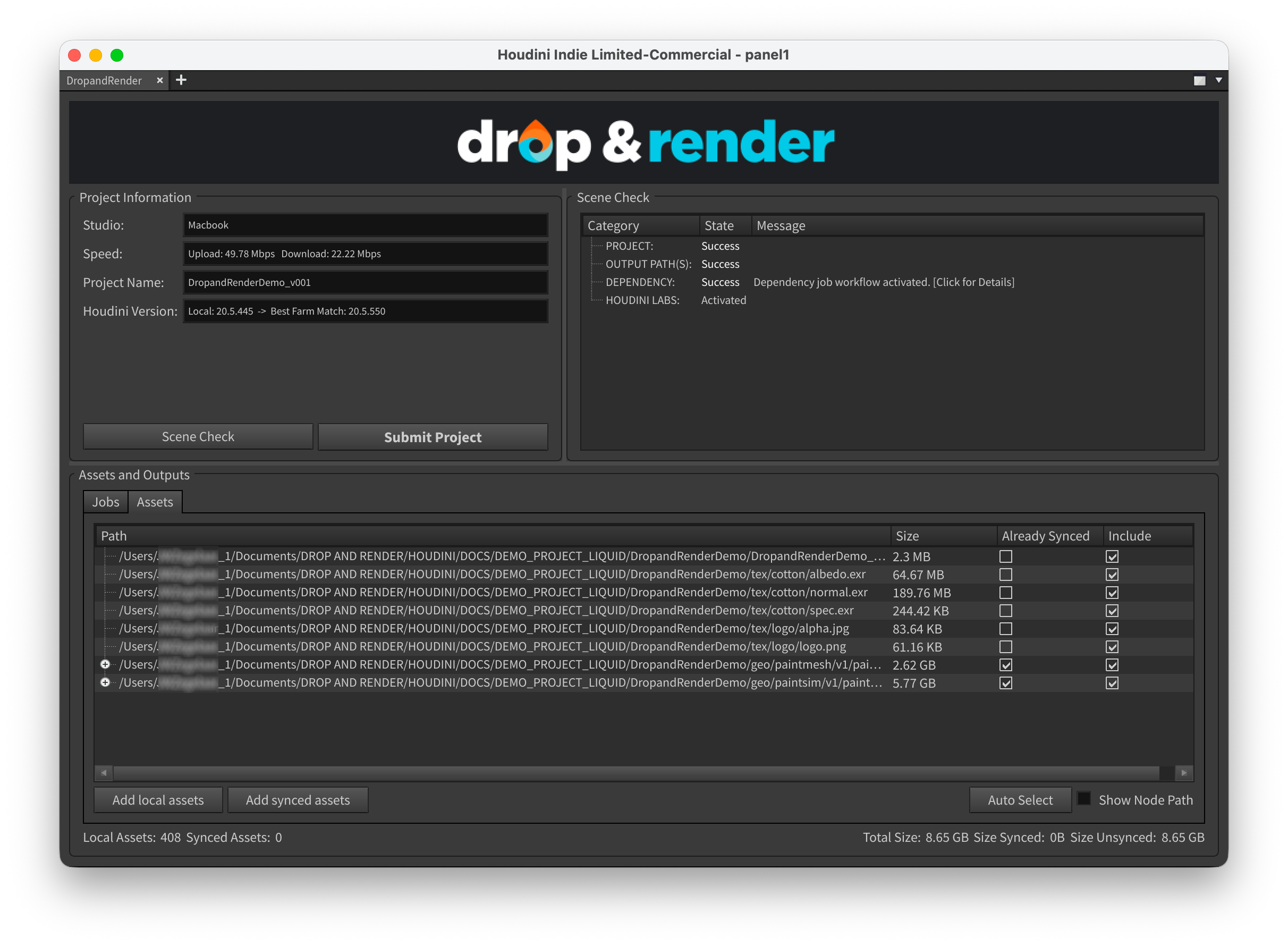
# Drop & Render Houdini manual  ## Why Drop & Render Drop & Render is a premier managed render farm solution designed with both freelancers and studios in mind. You send us projects that take hours to render, and we'll have them ready for you in minutes. - **Seamless integration:** Our plugin integrates directly into Cinema 4D, Blender and Houdini. - **Managed servers:** We bring the hardware, you bring the project. No need to maintain your own infrastructure or set up any virtual environments. - **Plug and play:** We take your projects as they are. Drop & Render is built around _your projects_, not the other way around. - **Outputs where you expect:** Downloads go straight to your project folder. Just like rendering locally. - **Dedicated support:** You can always reach real people with long term experience in 3D rendering for all of our supported platforms. ## System requirements Our tools support both Windows (8 and up) and MacOS (10.15 and up), with Linux support on the way. All of the computation is done in our cloud, so the only system requirement is being able to open your project in Houdini. ## Setup & installation To use Drop & Render, you first need to [create an account](/register). Once this is done, head over to the [dashboard](/dashboard) and download the Cloud manager application for your operating system. Once installed you can open it as: - Windows: Drop and Render User Interface - MacOS: Applications / DropandRender / cloudui The application will then prompt you to install one of our plugins. Pick Houdini, and follow the instructions. Our plugin will then be installed into your package directory. You can find more information on our toolbox, including the Cloud manager and our web dashboard in our [Drop & Render](/manuals/drop-and-render) manual. ## Core concepts ### Distribution of work Our datacenter is filled with top-of-the-line machines optimized for 3D rendering. When you submit a job we will split it into many smaller chunks, and give each to an independent machine. This means that your job can be rendered by 50+ machines all at the same time. ### Slices & slice numbers Slices are the chunks we split your project into, and the number of frames that are processed by each chunk is its "slice number". Rendering multiple frames in one slice means you reduce the number of times Houdini has to initialize the project. The slice number defaults to 1, but this is not always optimal. Each job has a startup overhead of 1-2 minutes due to Houdini itself. For a render that takes 30 seconds per frame on our machines, this effectively means that with a slice number of 1, each machine will charge you for up to 2 and a half minutes, even though your render only took up 20% of that time. Increasing the slice number helps reduce this extra cost - by rendering more frames per slice you reduce the number of startups. In the above case, if your render has 10 total frames and you set the slice number to 10, you'll end up doing 5 minutes of rendering for each 2 minutes of startup. This means your total render time goes from ~25 minutes (`2.5 minutes * 10 frames`) to only 7 minutes (**~72% faster & cheaper**) (`2 minutes + 30 seconds * 10 frames`) executed concurrently with 10 machines working at once. > **Tip:** Aim for approximately **20 minutes of total work per slice** (startup + rendering). ### Queues and priority Machines are assigned to slices based on our priority system. We have 3 priority levels, Sapphire (lowest), Emerald (medium) and Diamond (highest). The higher your priority, the further ahead your slices go in the global queue and thus the faster your job will complete. Each priority level carries a multiplier of cost, with Sapphire standing as the base price. However, **the extra costs apply only when the higher priority made a difference**. If there are machines immediately available, you will only be charged Sapphire costs even if you choose the Diamond priority. > **Tip:** For production deadlines, we recommend using the Emerald or Diamond priorities. Use > Sapphire when the deadline isn't strict, such as overnight renders or other non-urgent work. ### Cloud manager The Cloud manager is our desktop application forming a bridge between your local workstation and our render farm. It handles uploading files, submitting & monitoring jobs and automatic downloads. **Once your job is uploaded your machine is free to do anything else**, including shutting down your machine or doing local renders. > **Note:** Auto-downloads will only work while the Cloud manager is open. > You can always download your outputs for up to 7 days after job completion > using our [Web dashboard](/dashboard). ### The sync system Drop & Render uses an intelligent syncing system with hash-based file comparisons and aggressive de-duplication. When you first upload a file we store a hash of it, which we can then check against any future uploads. If the local and remote hashes match it means **the file hasn't changed, so it doesn't need to be re-uploaded**. This drastically reduces upload costs when re-rendering alterations of the same project. Assets uploaded by team members are automatically available for everyone in the studio. They are stored for 7 days after their last usage. We allocate 5TB of storage per studio account by default. More is available on request through our [support system](/support). ### The download system Our download system delivers files to your disk exactly as the render would if it was executed locally on your workstation. Downloads are initiated once a full slice is completed, and will automatically handle everything for you. You can even **completely close the Cloud manager** (once everything has uploaded), and your **downloads will resume the next time you open it**. Downloads are stored for 7 days after creation. You can choose downloads on a per-job basis. You likely always want to retrieve final render results, small to medium caches or preview frames, but large caches, intermediate files (used by other jobs as intermediaries) and other unnecessary outputs can be disabled so they stay on the farm. > **Tip:** For simulations, disable downloads and let the farm keep the cache. Your > render job can then reference those files by going to the Assets tab and selecting > "Add synced assets". ### Managing dependencies To submit a project, simply add the Drop & Render HDA to your network. Our system reads the connections in your node graph to determine the render order. You can submit up to 100 jobs in a single submission. The way you wire your nodes tells our farm how to prioritize tasks. #### Parallel Rendering (Independent Jobs) Use this method when jobs do not interact with each other and can be rendered simultaneously to save time. **How to connect:** Wire multiple nodes directly into the Drop & Render HDA input. **Result:** The farm spins up separate machines for each job immediately. #### Sequential Rendering (Dependencies) Use this method when one task (like a simulation) must finish before the next one (like a render) begins. **How to connect:** Chain your nodes together in a line. Connect only the final node to the Drop & Render HDA. **Result:** The farm respects the chain. Job B will not start until Job A is 100% complete.  > **Example:** In this example we fetch three nodes in a chain, with the final > node connected to the Drop & Render HDA. The order is clear: simulation first, > then mesh generation, then the Karma render. The farm follows this chain exactly like Houdini would locally. The next job will not begin until the previous one is fully completed, ensuring the output is always correct and up to date. #### Mixed Workflows (Complex Dependencies) Most production scenes require a mix of both methods. You might have several independent simulation chains that need to finish before a final render occurs. You can wire your setup just like you would locally and our farm will understand how to handle it.  > **Example:** In this example we combine sequential and parallel tasks. The > simulation filecache and mesh filecache are processed first, either chained > directly or merged with a Merge node to keep the network tidy. Once both caches are complete, the final Karma and Redshift renders are triggered. Because these final renders do not depend on each other, the farm starts them at the same time, giving you parallel speed without losing dependency accuracy. #### Using merge nodes When you need to combine outputs from parallel jobs before sending to Drop & Render, use Houdini's Merge node. This is useful for combining multiple geometry streams, render passes, or cached sequences. ``` [Simulation A] ───┐ [Simulation B] ───┼──> [Merge] -> [Drop & Render] [Simulation C] ───┘ ``` The Merge node waits for all inputs to complete before passing data downstream, ensuring all dependencies are resolved before the farm processes the merged result. #### Using fetch nodes Fetch nodes (ROP Fetch, SOP Fetch, LOP Fetch) let you reference nodes from other network contexts without creating hard dependencies. This is useful for building complex submission graphs. **Example use case:** ``` /obj/geo1/simulation -> [File Cache] /out/rop_fetch1 [references /obj/geo1/file_cache] -> [Drop & Render] ``` The fetch node pulls the simulation result into your ROP network, letting you organize submissions cleanly without duplicating nodes or creating unwieldy wire connections across contexts. ### Version matching Drop & Render supports all major Houdini render engines and many popular plugins out of the box. **We always use the closest matching version we have available**, for both Houdini itself (guaranteed major version matches, as well as the closest bugfix release we have - 21.0.x, 20.5.x, etc.) and any plugins. You can see information on what versions we are using in the Scene check panel. For further information, check the [plugins & engines](#using-plugins-and-engines) section. ## Drop & Render Houdini plugin Our plugin provides a `drop_and_render` node to place in your scenes. After creating an instance in your scene graph, you can connect any number of nodes to it to send to the farm. ### Where to add the HDA The Drop & Render node works in any Houdini network context. You can add it wherever your workflow needs it: - **ROP context** (`/out`): For traditional rendering workflows - **LOP context** (`/stage`): For USD/Solaris and Karma renders - **SOP context** (`/obj/geo`): For simulations and geometry caching - **TOP context** (`/tasks`, `/obj/topnet`): For PDG workflows Press **Tab** in any of these contexts, type "drop", and select **Drop and Render** to create the node. ### Checking and submitting jobs You can use the scene check panel, accessible by pressing "Submit project" in our node's inspector, to submit your jobs. #### 1. Initiate a scene check Press the "Scene check" button to run our internal analysis of your project. We will make sure everything is in order & collect any errors or warnings. Once the process is complete you'll see the panel populate with all information you need. #### 2. Fix warnings and errors Check the output in the "Scene check" section. You should have nothing to fix in most cases, but if you do all the steps will be documented here. Our systems should pick up all assets required by your scene. Sometimes we notice references that aren't necessary for your nodes. You can click "Ignore" on these, and we won't bother you about them anymore. #### 3. Validate per-submission settings Each submission will have different settings available based on its type. Just click on them, and make any adjustments necessary. #### 4. Manage uploaded assets We try to reuse as many assets as possible between submissions. Any static content, like textures, will automatically be uploaded and reused if you submit multiple times. You can manually set non-static assets to upload to reduce the workload on the server if it doesn't change between submissions (like a simulation you don't change between runs). Everything with "include" checked in this panel will be uploaded to the server. If "already synced" is checked the asset is already on the server, and will not be uploaded again. ### Additional options #### Asset management Our "Assets" panel lets you monitor and manage all the files that belong to your jobs.
Project:
[wedge1]
↓
[ropfetch3]
↓
[ropfetch2]
↓
[partitionbyframe1]
↓
[imagemagick1]
↓
[waitforall1]
↓
[ffmpegencodevideo1]
↓
[drop_and_render]
Submissions:
├─ wedge1_to_imagemagick1
│ ├─ wedge1
│ ├─ ropfetch3
│ ├─ ropfetch2
│ ├─ partitionbyframe1
│ └─ imagemagick1
└─ waitforall1_to_ffmpegencodevideo1
├─ waitforall1
└─ ffmpegencodevideo1
Project:
[wedge1]
↓
[ropfetch3] → [drop_and_render]
↓
[ropfetch2]
↓
[partitionbyframe1]
↓
[imagemagick1]
↓
[waitforall1]
↓
[ffmpegencodevideo1]
Submissions:
└─ wedge1_to_imagemagick1
├─ wedge1
└─ ropfetch3