
File caching is the backbone of modern VFX production. Whether you're running a FLIP simulation with 50 million particles, a Vellum cloth solve with collision geometry, or baking out VDB volumes for explosions; these operations can take days on a local workstation.
The obvious solution is to offload this work to a render farm. But traditional farms weren't designed for this:
- They expect a single ROP that outputs frames independently
- They don't understand that meshing must happen after simulation
- They can't handle the terabytes of intermediate data without manual wrangling
- Artists end up babysitting jobs, waiting for one to finish before submitting the next
We built something different. Our system understands dependencies between cache operations and lets you submit entire pipelines; simulate → mesh → render; in a single click.
Drop & Render's solution
Part 1: Any Cache Node, One HDA
The Problem with Fragmented Workflows
Houdini has multiple ways to cache geometry:
| Node Type | Use Case |
|---|---|
| File Cache | General-purpose geometry caching with versioning |
| Alembic ROP | Interop with other DCCs (Maya, C4D, Unreal) |
| RBD I/O | Optimized for packed RBD simulations |
| Vellum I/O | Cloth, hair, and soft body caches |
| USD ROP | Scene description for Solaris pipelines |
Each has different parameters, different output paths, different frame range settings. A typical simulation pipeline might chain three or four of these together.
Our Approach: Unified Node Detection
When you connect any cache-type node to our Drop & Render HDA, we automatically detect its type and extract its settings:
Your Scene Graph
├── filecache1 (FLIP simulation)
│       ↓
├── filecache2 (Meshing)
│       ↓
└── Redshift_ROP (Final render)
For each node, we read:
- Output path (supporting both "Constructed" and "Explicit" modes)
- Frame range (from the node or inherited from the scene)
- Version number (if versioning is enabled)
- Whether it requires single-machine execution (simulations vs. parallelizable caches)
The result: you configure your cache nodes exactly as you would for local work. No path translation, no special naming conventions; just connect them to our HDA and hit submit.

Part 2: Dependency-Aware Job Submission
Why Order Matters
Consider this common simulation pipeline:
RBD Simulation (frames 1-240)
↓
Debris Particles (frames 1-240, needs RBD cache)
↓
VDB Meshing (frames 1-240, needs both caches)
↓
Redshift Render (frames 1-240, needs mesh)
If you submit these as independent jobs, chaos ensues. The meshing job starts immediately and fails because the simulation cache doesn't exist yet. Artists end up manually sequencing submissions, watching dashboards, clicking "submit" over and over.
Automatic Dependency Graph Construction
When you connect nodes to our HDA, we traverse your network and build a dependency graph automatically. The system walks upstream through all inputs, recording each node as a dependency of its downstream consumer.
The output is a structured job manifest:
Job: rbd_sim
└── No dependencies (starts immediately)
└── Single machine: Yes

Job: debris_particles
└── Depends on: rbd_sim
└── Single machine: Yes

Job: vdb_mesh
└── Depends on: debris_particles
└── Single machine: No (parallel across farm)
Parallel vs. Sequential Execution
Not all cache operations are equal:
| Operation | Execution Mode | Why |
|---|---|---|
| Simulations | Single machine | Frame N depends on frame N-1 |
| Meshing | Parallel | Each frame is independent |
| Alembic export | Single machine | Single output file, not per-frame |
| VDB conversion | Parallel | Per-frame processing |
We detect this automatically based on node type and settings. When "Cache Simulation" is enabled on a File Cache node, we force single-machine execution. The farm scheduler respects these flags; simulations run on one powerful machine from start to finish, while independent operations fan out across the cluster.

Part 3: Direct Download to Your Original Paths
The "Feels Like Local" Experience
Here's what happens when your cache job completes:
- Cache files are written to farm storage
- Our monitor thread detects completed frames
- Files copy directly to your original output path
The artist experience: you hit submit, go home, and the next morning your cache files are exactly where you expected them; same path you specified in Houdini, same naming convention, same version folder.
Real-Time Progress and Streaming Downloads
We don't wait for the entire job to finish before starting downloads. As each frame completes, it streams back to your local machine immediately:
Frame 1 completes on farm → Downloads to your drive
Frame 2 completes on farm → Downloads to your drive
... (continues in parallel with caching)
Frame 240 completes on farm → Downloads to your drive
This means:
- Frame 1 downloads while frame 50 is still caching
- You can start reviewing results before the job completes
- Network utilization stays consistent instead of spiking at the end
Part 4: Skip the Download; Keep Caches on the Farm
The Terabyte Problem
A single production simulation can generate terabytes of data:
| Asset | Frames | Size per Frame | Total |
|---|---|---|---|
| Ocean FLIP sim | 1,000 | 2 GB | 2 TB |
| Explosion VDBs | 500 | 800 MB | 400 GB |
| Destruction debris | 1,200 | 500 MB | 600 GB |
Downloading 3 TB over the internet? That's 6+ hours on a fast connection. And if you're just going to use that cache for a render on the same farm... why download it at all?
The "Don't Download" Workflow
Every cache job in our system has a simple toggle: Download: Yes/No
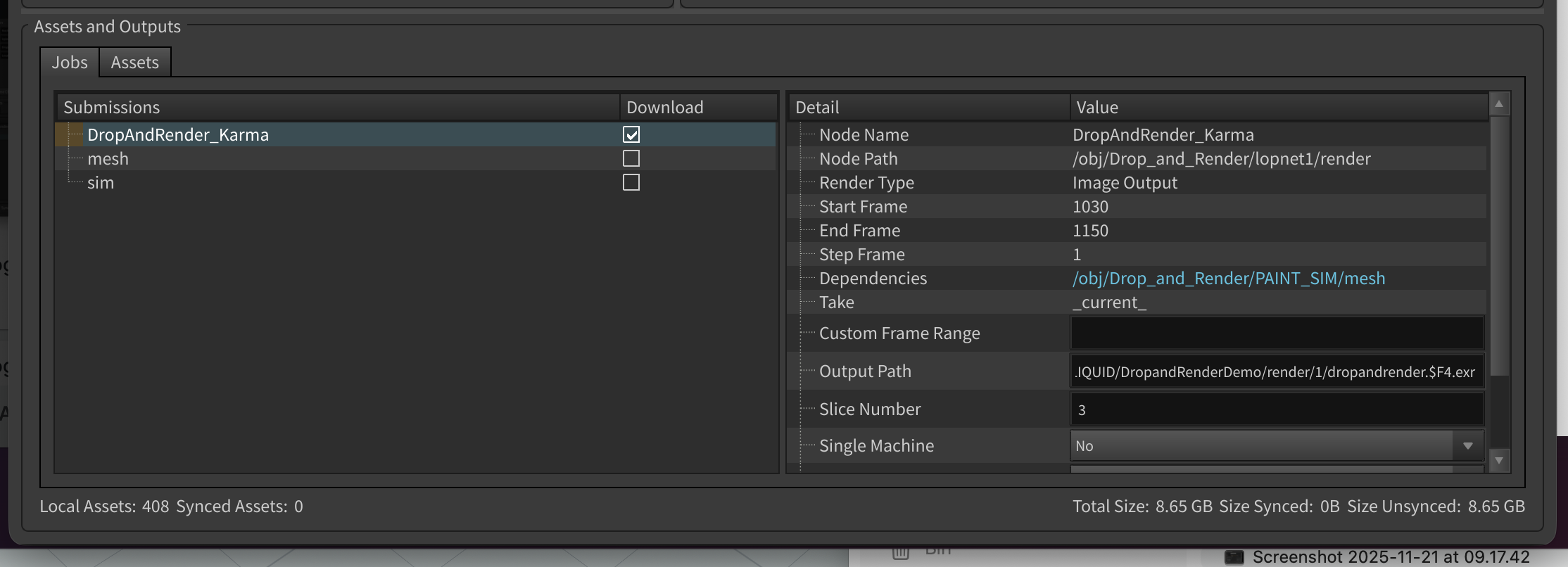
When you set it to "No":
- Cache files stay on farm storage
- 7-day retention timer begins
- Job completes in seconds (no transfer time)
Reconnecting Farm Caches to New Jobs
The next day, you want to render using yesterday's simulation. Instead of re-uploading terabytes:
- Click "Add Synced Asset" in our panel
- Browse all assets currently stored on the farm
- Select the cache files you need
- Submit your render job
Add Synced Asset Panel
├── geo/flip_sim/
│   ├── flip_surface.0001-0240.bgeo.sc ✓
│   └── flip_particles.0001-0240.bgeo.sc
├── geo/debris/
│   └── debris.0001-0240.bgeo.sc ✓
└── vdb/explosion/
└── density.0001-0240.vdb
On the farm, we create hardlinks from your project's expected paths to the existing cached data. Zero transfer, instant access.
The 7-Day Rolling Retention
Files in farm storage follow our Content-Addressable Storage model:
- Each file is stored by its content hash
- The 7-day timer resets every time a file is used
- Frequently-used assets stay warm indefinitely
- One-off caches auto-purge after a week
This means your studio's core asset library; shared HDRIs, approved simulation caches, template geometry; effectively lives on the farm permanently, as long as you keep using it.
Part 5: Putting It All Together
A Real Production Scenario
Here's a complete destruction shot workflow:
Day 1: Simulation Pass
Submit:
├── RBD Destruction (single machine, 12 hours)
├── Debris Particles (depends on RBD, single machine, 4 hours)
└── Smoke Simulation (depends on Debris, single machine, 8 hours)

Settings: Download = No
You submit before leaving work. Jobs chain automatically overnight.
Day 2: Meshing and Prep
Submit:
├── VDB Meshing (parallel, 2 hours across 50 machines)
└── Alembic Export (single machine, 30 min)

Dependencies: Auto-linked to Day 1's caches via "Add Synced Asset"
Settings: Download = No
Day 3: Final Render
Submit:
└── Redshift Render (parallel, 4 hours across 100 machines)

Dependencies: Auto-linked to meshes from Day 2
Settings: Download = Yes (final frames come back)
Total artist interaction: Three submit clicks across three days. No babysitting, no manual job sequencing, no multi-terabyte downloads until the final frames.
Technical Appendix: Supported Cache Types
| Node Type | Parallel | Single | Output Formats |
|---|---|---|---|
| File Cache | ✓ | ✓ | .bgeo.sc, .vdb, .abc |
| Alembic ROP | — | ✓ | .abc |
| RBD I/O | ✓ | ✓ | .bgeo.sc |
| Vellum I/O | ✓ | ✓ | .bgeo.sc |
| USD ROP | ✓ | ✓ | .usd, .usda, .usdc |
| Redshift Proxy | ✓ | — | .rs |
Conclusion
Heavy simulation work shouldn't require heavy artist overhead. Our system treats the entire cache-to-render pipeline as a single, dependency-aware workflow:
- Connect any cache node to our HDA; we figure out the rest
- Automatic dependency ordering: simulations before meshing before rendering
- Skip downloads for intermediate data: keep terabytes on farm storage
- Reconnect cached assets: use yesterday's simulation in today's render
The goal is simple: let artists work the way they already work, just faster.
Ready to speed up your simulation pipeline?
Have questions about our caching architecture? We'd love to hear from you; reach out to our team.