For a liquid product shot, simulation, meshing and lighting may be ready to run in sequence, yet the work can still wait between stages while an artist checks progress and submits the next job. When the team has already agreed to run the chain, that processing order can be part of the submission instead.
With Drop & Render, you can submit connected cache and render jobs together. We read supported relationships in your Houdini network and turn them into farm dependencies: the mesh waits for the simulation, and the render waits for the mesh. The team decides where creative review is needed before letting the next stage proceed.
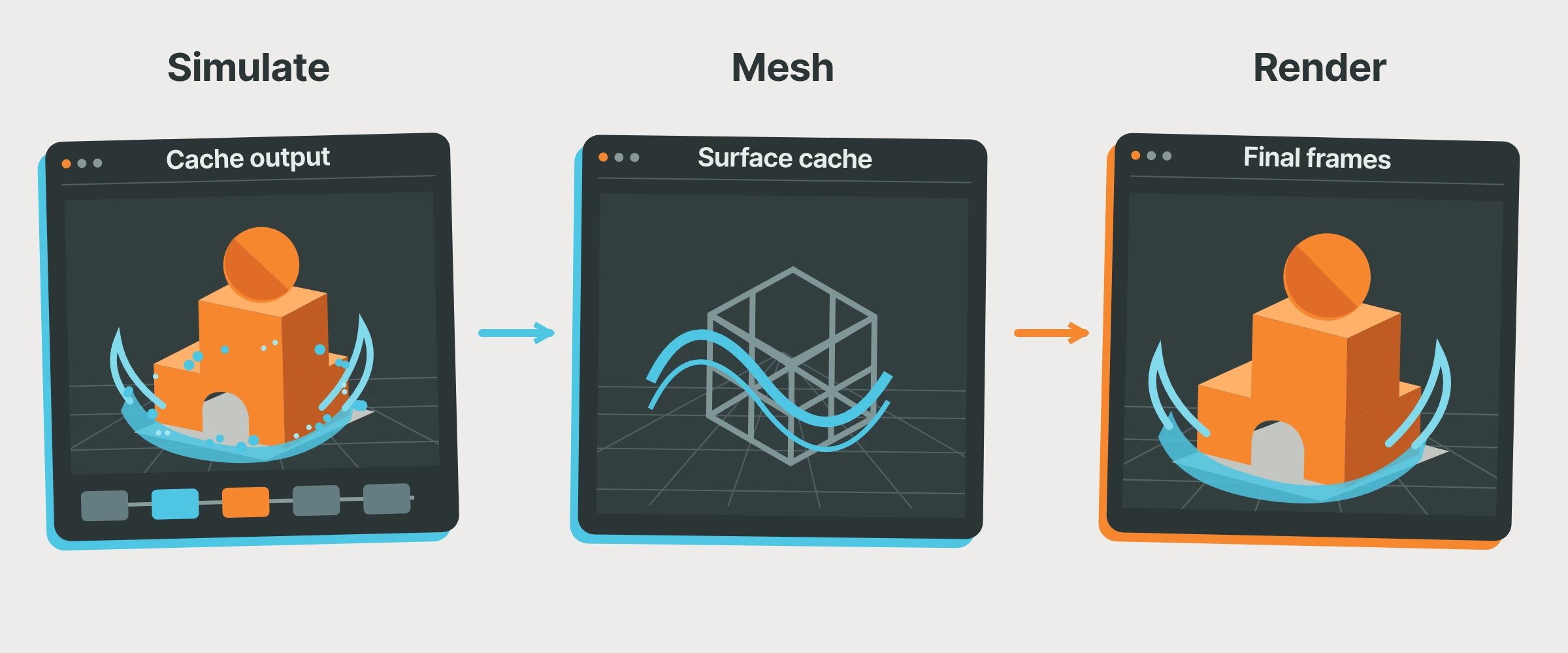 One submission can carry the work from simulation through to rendered frames.
The next job knows when to start
Take a liquid product shot. The FX artist has a simulation, a cache that turns the particles into a surface, and a lighting render that uses that surface.
Agree on the cache version, frame range and final output location, then connect the stages through supported cache, render or fetch nodes. The submission panel shows the resulting jobs and what each is waiting for, so you can review the order before submitting.
The surface job becomes eligible after the full simulation job completes, and the lighting render after the surface job completes. Actual starts also depend on farm availability.
For an overnight iteration, that order removes the need for someone to submit each stage manually. If FX needs to inspect the simulation first, keep that review break and submit the later stages after approval. Job completion establishes that processing finished; it does not establish that the motion is right.
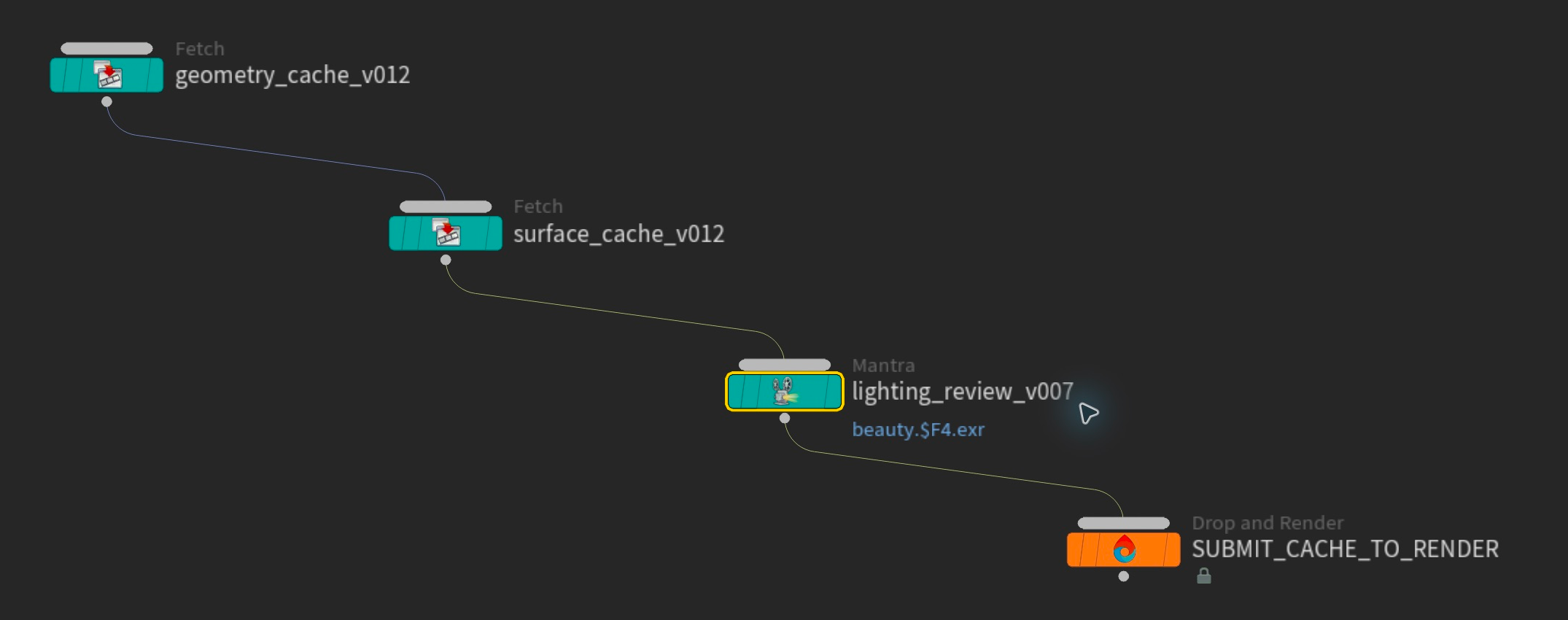 This demonstration connects geometry and surface caches through Fetch nodes to a Mantra render, then to the submission node.
Simulations get the execution they need
Simulation frames usually depend on what happened in earlier frames. Splitting them across machines like an image sequence would lose that history.
We read the File Cache node's Cache Simulation setting. When it is enabled, the cache runs on one machine. When it is disabled, the cache can be distributed across machines, which suits operations where each frame can be processed independently.
That distinction matters for a liquid shot: the simulation needs its history, while a surface built from an existing cache may be able to process each frame separately. Check the actual network before choosing the setting; switching simulation mode off does not make a stateful operation independent. The integration also submits Alembic cache jobs for single-machine execution.
Download what your team needs
If the simulation, meshing and rendering all happen on the farm, those intermediate caches do not need to make a round trip through your office.
Set Download to No for the cache jobs and Yes for the rendered frames. The caches stay on the farm for the workflow, while the images return to your configured output folder.
Enable the surface cache's download too if an artist needs the geometry locally for inspection. Each stage has its own choice, so you can bring back review material without downloading every intermediate result. Confirm the destination is writable and accessible to the receiving artist. Our file-cache workflow guide covers supported nodes and settings in more detail.
Keep a good simulation working for you
If the client changes the lighting while the liquid motion remains approved, check whether the cache is still available on the farm. Add synced assets lets you select listed files from your studio's available asset list. Confirm the version, frame range and paths expected by the scene before using them in the new submission.
A listed cache that remains on the farm and is absent locally can feed the render without being downloaded and uploaded again. Check its availability before the new submission, and keep your own copy of results you need to archive.
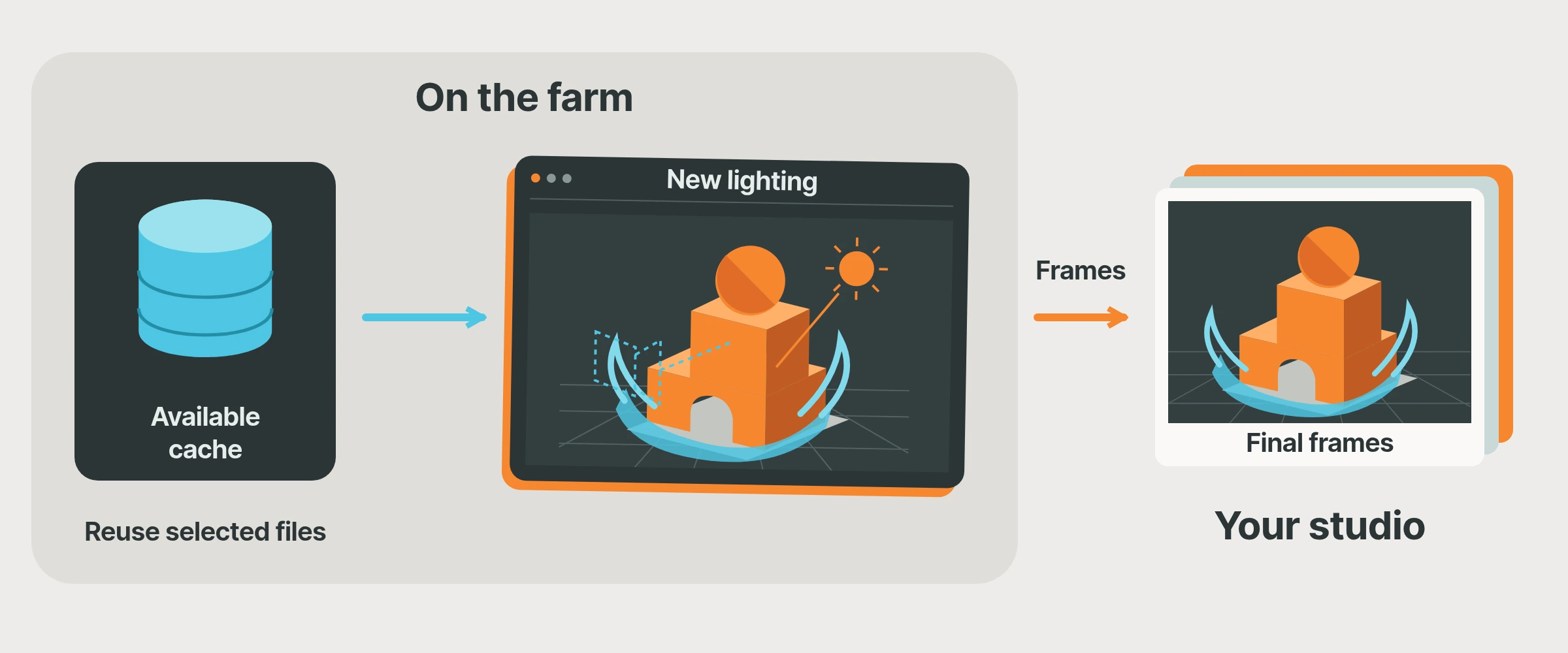 Change the lighting and reuse the selected cache while it remains available.
More variations? Bring in PDG
When one liquid setup becomes several variations, PDG gives you a way to describe them together. It is Houdini's system for organising procedural tasks and their dependencies.
We turn supported PDG workflows into farm jobs, including synchronisation points such as waitforall and per-node download choices. Use those boundaries to wait for required results and select the outputs the team needs to review; custom TOP networks still need checking. Our PDG guide explains the setup.
For a first chain through the Houdini integration, review the generated dependencies and download choices with both FX and lighting, then inspect the returned frames before expanding the workflow. That checks the handoff the production actually needs, including where an artist must still make a decision.