
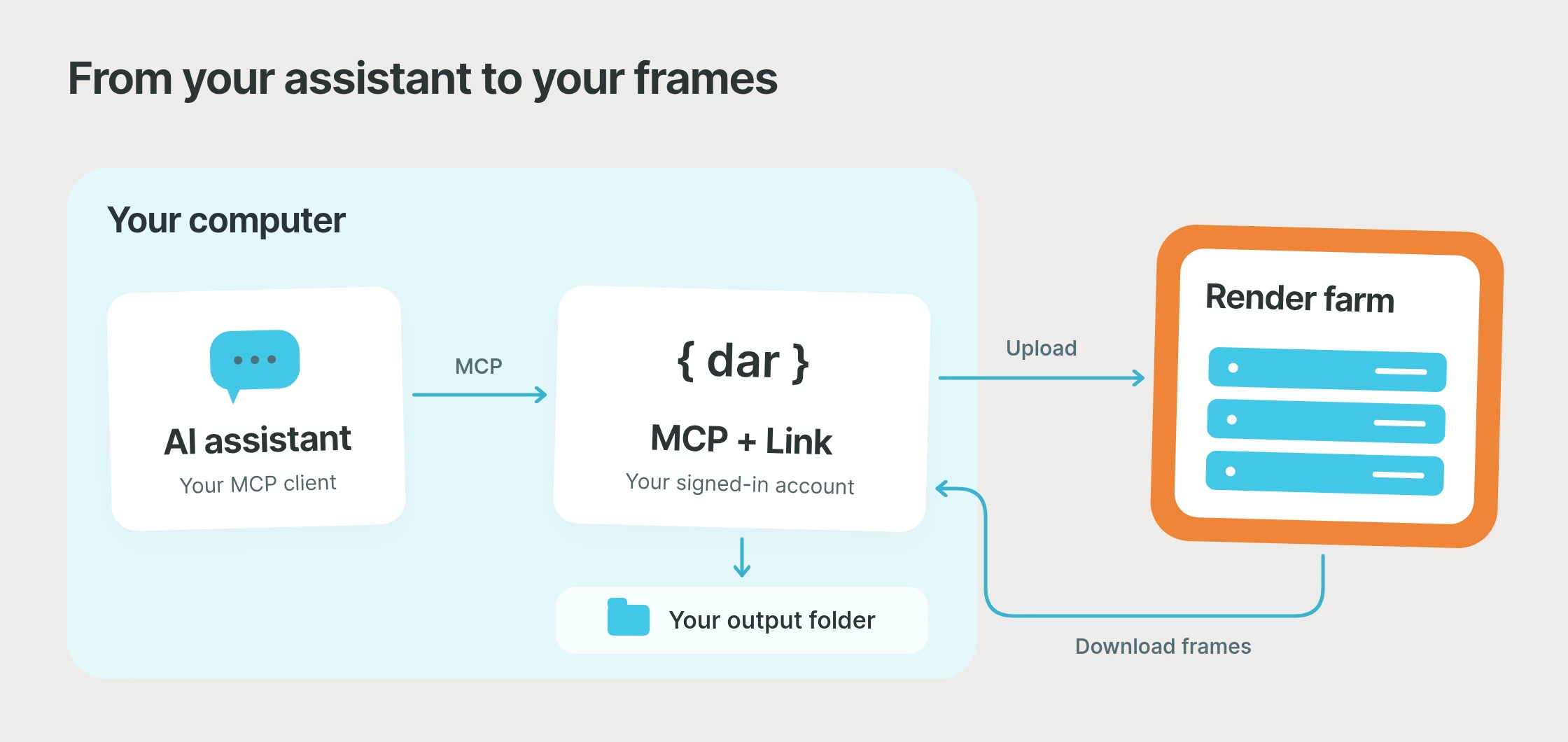
The Drop & Render MCP extension lets a compatible AI assistant prepare, submit and monitor Blender, Cinema 4D and Houdini render jobs through Drop & Render Link. It uses the Model Context Protocol (MCP) to provide render farm tools without requiring shell access.
You can ask about existing jobs, validate a render request before submission, and check rendering and download progress separately. The extension runs locally alongside Link, and your MCP client controls approval before billable renders or job changes. For configuration details, see the MCP extension page; developers can also use the same render farm API from their own tools.
Drop & Render MCP at a glance
| Question | Answer |
|---|---|
| Supported applications | Blender, Cinema 4D and Houdini |
| Requirements | Link running and signed in, the MCP extension installed, and a compatible local MCP client |
| Connection | Streamable HTTP on the same computer as Link |
| Additional extension fee | None; normal render charges apply, and your AI client may charge separately |
| Approval | Configured in your AI client before billable renders or job changes |
What can an AI assistant do with the render farm?
Your assistant can find jobs, report their state, check rendering and download progress separately, and inspect failed-slice details. A useful first request is: “Find shot010 and tell me how far it has progressed. Do not change anything.” A finished render and a complete local output folder are different things, so ask about both before compositing or delivery.
This works with jobs submitted through our plugins as well as the API. You can keep submitting from your usual application and use the assistant to look up a shot, find jobs with a project label or inspect the details of a failed slice. If a retry makes sense, have it explain the proposed change before you approve it.
How do you prepare and validate a render request?
For new work, an assistant with local file-writing tools can help create a render.json describing the scene, render engine, application version, frame range and output folder. Give it the project context and make sure the request lists the required textures, caches and other dependencies; they are not discovered automatically.
Example: prepare a Cinema 4D shot, then check delivery
Use this example prompt to prepare a short Cinema 4D test range:
Prepare frames 1 to 24 of shot010.c4d with Redshift. Include the textures folder and use renders/shot010 for the output. Check that the requested Cinema 4D and Redshift versions are available on the farm. Validate the request first. Show me the settings and ask before submitting.
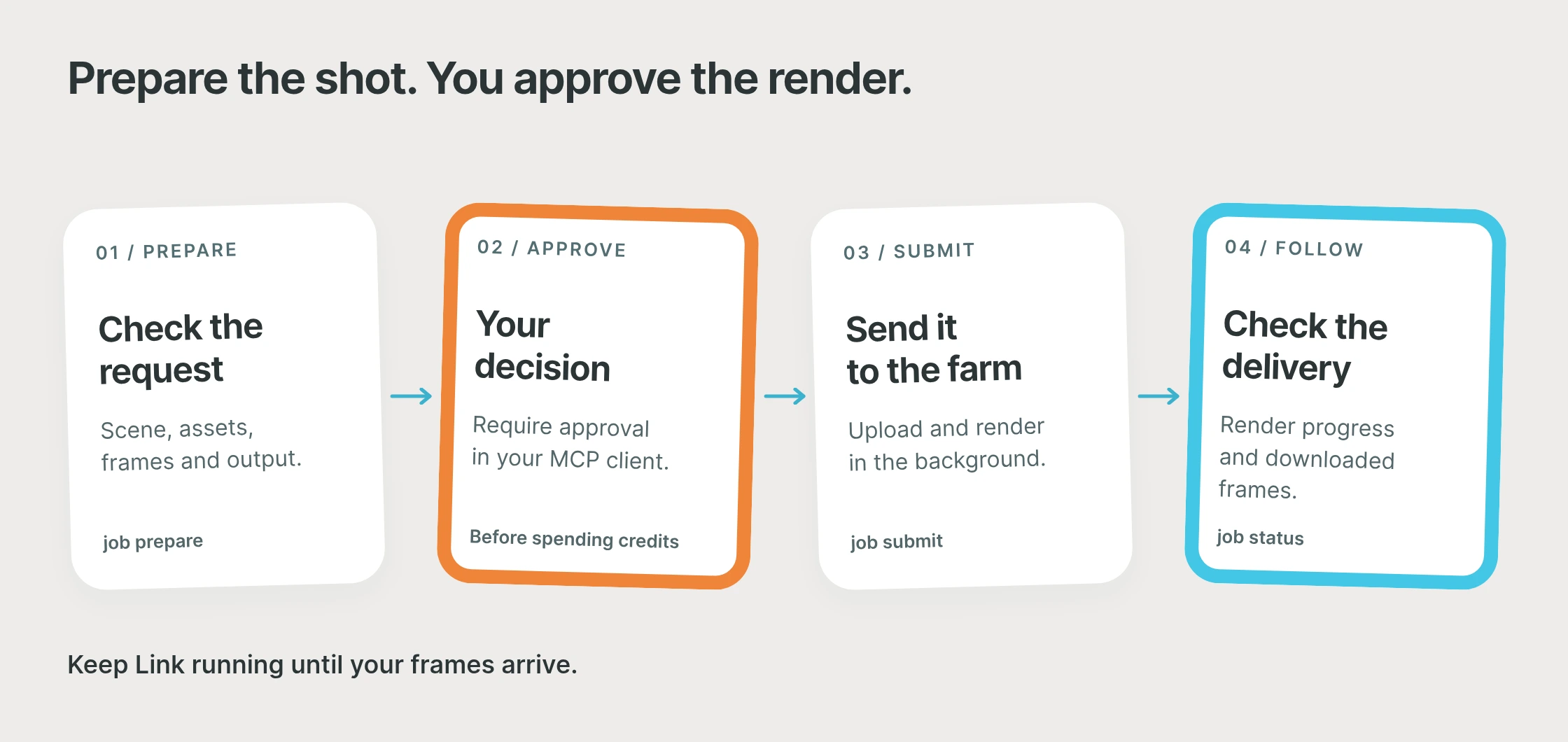
- Prepare the request. Ask an assistant with local file-writing tools to create
render.json, check available farm builds and explicitly list the required assets. Textures, caches and other dependencies are not discovered automatically. - Validate before submission. Have it run
job prepareto validate the request without creating a billable render. - Review and approve. Check the scene, application version, engine, frame range, dependencies and output folder. Approve submission in your client only when those settings are correct.
- Follow the upload and render. After acceptance, record the returned job IDs. Keep source files unchanged until upload finishes and leave Link running.
- Check frame delivery. Ask the assistant to check rendering progress and download progress separately, and confirm that the requested frames have arrived before starting compositing or delivery.
The MCP connection provides one tool, dar, with the same arguments and structured results as the CLI. An assistant can start by calling it with {"args":["--help"]}. It does not need a separate command reference that drifts away from your installed version. If your assistant already has shell access, it can use the CLI directly with less setup.
Who approves submissions and credit spending?
You approve billable renders and job changes through your MCP client. Set it to ask before spending credits, changing jobs or uploading support reports. Approval belongs in your client; MCP calls run without an interactive terminal confirmation. Only connect clients you trust to act through the account signed in to Link.
After acceptance, a normal submission returns job IDs while uploading and rendering continue in the background. Keep the source files unchanged until upload finishes, and leave Link running to receive the output. Your assistant can check job status later rather than holding the conversation open until the last frame arrives.
Closing the chat or cancelling a tool call does not cancel accepted farm work. If the response to a submission is lost, ask the assistant to inspect the job before trying again, so an uncertain result does not become a duplicate render.
How do you connect an MCP client to Drop & Render?
Install Drop & Render Link, sign in and open Extensions in your dashboard. Choose MCP and install it, then add a server in your assistant’s MCP settings using Streamable HTTP and http://127.0.0.1:3767/mcp. No token is required for this local endpoint.
Use a client on the same computer as Link; a cloud-hosted connector cannot reach that local address. Installation does not configure the assistant for you. Once connected, ask it to read the tool’s help and check Link’s status before preparing your first render.
Frequently asked questions
Can MCP check jobs submitted through the DCC plugins?
Yes. The Drop & Render MCP extension can check jobs submitted through the Blender, Cinema 4D and Houdini plugins as well as the API. Your assistant can look up a shot and check rendering and download progress separately.
Can a cloud-hosted AI connector reach the local endpoint?
No. The MCP endpoint at http://127.0.0.1:3767/mcp is local to the computer running Link. Use a compatible MCP client on that same computer with Streamable HTTP support.
Does closing the chat stop a submitted render?
No. Closing the chat or cancelling a tool call does not cancel accepted farm work. If a submission response is lost, check the existing jobs before trying again to avoid a duplicate render.
Is the MCP extension free?
The extension has no additional fee. Render jobs use your normal render credits and priority tiers, and your AI client may charge separately.
Start with one shot
Install the MCP extension, connect your assistant and begin with a read-only check of an existing job. For your next shot, prepare a short test range, review the settings and approve submission when you are ready. See the MCP extension page for connection settings and tool examples.